
Automation
For browser AI, start with creating layers from JSON: the AI writes JSON, and you paste it into WhimTex with Ctrl+V, without connecting to Unity. See the AI authoring guide for syntax and rules, and the examples folder for ready-to-use JSON.
The rest of this page covers an agent connected to Unity. It can add images as layers, arrange them, apply effects and paint simple elements, even in an unsaved document. You can continue editing the result by hand.
What to ask for
Describe the image you want, its canvas size and what should remain on separate layers. For example:
Create a 512 × 512 document. Add this image on a File layer, keep its proportions, add a soft outline and save the document in Assets/Icons.
For changes to an existing image, name the document and describe the desired result. Ask for a copy if you want to keep the original.
Check the result visually, especially after merging layers or applying effects.
Work together in an open document
You can ask an external agent to work in the document currently open in WhimTex:
Add a moon on a new Drawing layer in the open document.
Create noise for a soft, mysterious fog. Keep it as an editable Noise layer.
Remove the object inside my selection and put the repair on a separate layer.
The agent creates a named placeholder in advance and captures the initial image and selection. The placeholder reserves the result’s place in Layers. You can rename, hide or move it while the agent works; its content settings become available when the result arrives. Continue editing other layers normally. For a parameter-based layer, the agent can inspect a trial image first.
The agent can also write an effect directly in FX, or add a Shader Processor for the image below it. No separate shader file is needed; the code and parameters stay editable in the document. When working on an existing layer, it can temporarily lock that layer’s settings. The previous image remains visible, and you can still rename, hide or move the layer. Choose Cancel Agent Edit in Layer Settings to regain editing immediately. Other layers remain available.
If your request needs several results, the agent can create additional placeholders using the same initial selection and image.
The agent chooses whether to sample a particular layer or the visible composition based on what you ask. Mention a specific layer when that distinction matters. Region edits use the selection you had when the task started, even if you later select something else.
The selection can be a strict boundary or an approximate guide. The agent chooses from your request: precise repairs stay inside it, while an added object can cast a shadow outside it. Say “strictly inside the selection” when nothing outside should change, or “use the selection as a guide” to allow soft edges and protruding details.
To identify a layer precisely, select it and click GUID on the right of the Layer Settings header. Hover over the button to see the full ID, or paste the copied ID into your request. With multiple layers selected, this is the active layer’s ID. Groups and generation placeholders also have a GUID.
To stop waiting, select the placeholder and click Cancel Generation in Layer Settings, or delete it. If the target of a pixel edit changes while generation is running, the agent must resolve the conflict rather than overwrite your newer work. Closing the window, switching documents or reloading scripts interrupts the task. An interrupted placeholder will not receive the result: remove it and start again. Any result already completed remains a normal document layer.
Results are not saved automatically. Check the image and save when ready.
Generated images on new Drawing layers keep their original resolution. Transform fits them to the canvas or selected region, so fitting a large image does not discard its detail.
From generation to painting on a model
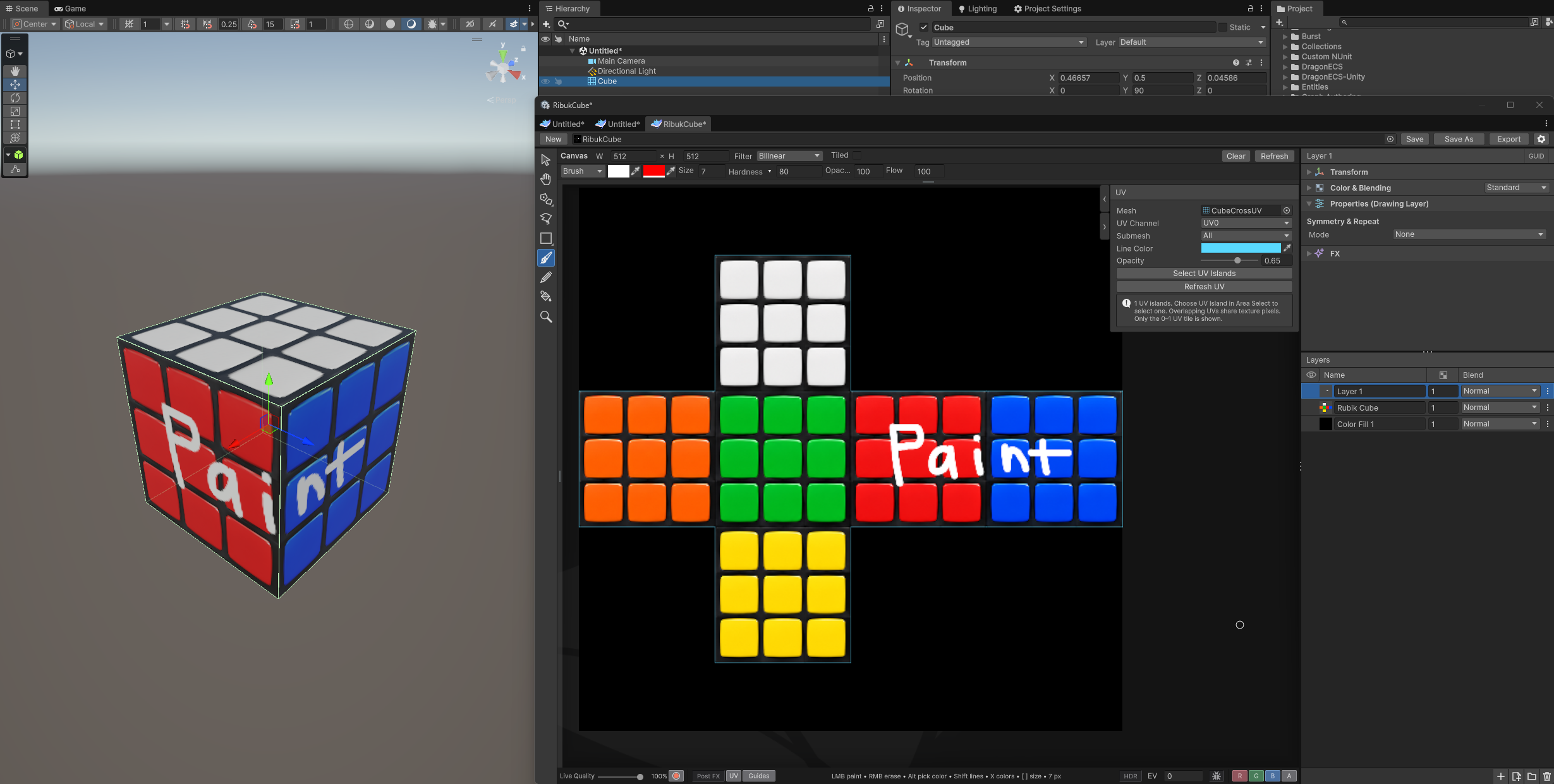
Select the mesh’s UV islands and ask the agent to create a texture inside them—for example, colored Rubik’s cube tiles. The agent places them on a Drawing layer in the UV layout. Paint white lettering above them on a separate layer, and use Live Update to see the result on the cube in Scene view.
Connect an agent
Give the agent the repository’s agent instructions. They explain how to use WhimTex in your Unity project. To access an open document, WhimTex must be installed in the project and the agent must be connected to Unity through the Live editing API.
Command syntax and integration setup are kept in the separate API reference, with examples. You do not need them for ordinary editing.